As part of my research I have decided to trial different budgeting software programs used in the industry in comparison to the standard software Movie Magic Budgeting. I will explore the different features that help make a budgetting more effective whilst also learning about different factors you need to input into a budget such as Globals, fringes and allowances.
I firstly want to start by exploring the Movie Magic Budgeting software to see what features it includes. As part of my research I decided to look further into the fringe costs that need to be considered in the UK.
Fringes
Fringes are additional costs of hiring crew that fall between either ‘Employers Tax’ or any contributions that will be collected by any union and/or guilds. In the UK, fringes include social security, workplace pension reform, payroll fees and income tax. Social security is the percentage of tax that will need to be paid towards the UK National Insurance, if you have an employer or are self-employed you will pay Class 1 NI, below is the Class 1 NI Rates from the Government website.
As an employer it is important to also pay your NI contributions of 13.8%.
Another fringe cost will be payroll fees, which this all dependant on what company you choose to do your payroll. I had a look at two different companies the first company is called Sargent Disc ‘ is the leading supplier of payroll services to the UK entertainment industry.’Sargent-Disc. 2020. This fee could cost anywhere between 0.5 – 1.5% of payments made.
In the England the current rate payable for income tax is at 20% from any earnings between £12,501 – £50,000 using Movie Magic Budgeting you can put these preferences in so that any amount above £12,501 will be taxed 20% of their earnings. Movie Magic also offer a book called ‘The Paymaster Rate Guide’ this consists of union rates, terms and conditions and fringes for different countries. This makes is really good to refer to especially when working abroad you are able to see what fringes occur in different countries.
I wanted to test inputting this into the Movie Magic Budgeting software which I have demonstrated below, the user interface comes across as confusing at first however once you understand all the functions of each drop down menu there are quite a few short cuts you can use. To set up Fringes you will need to go to Setup > Fringes.
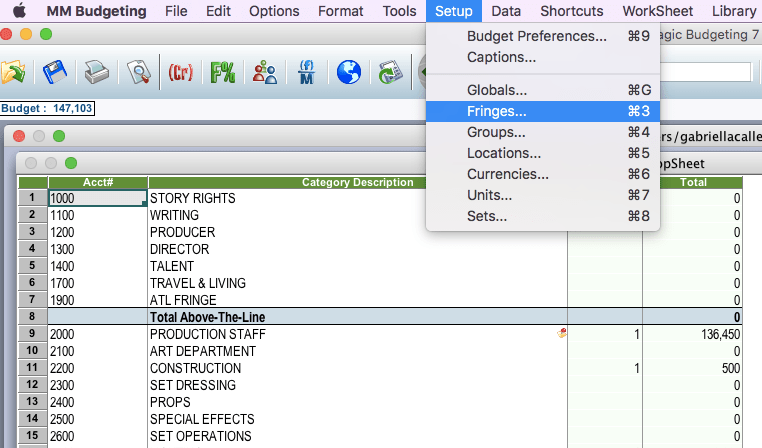
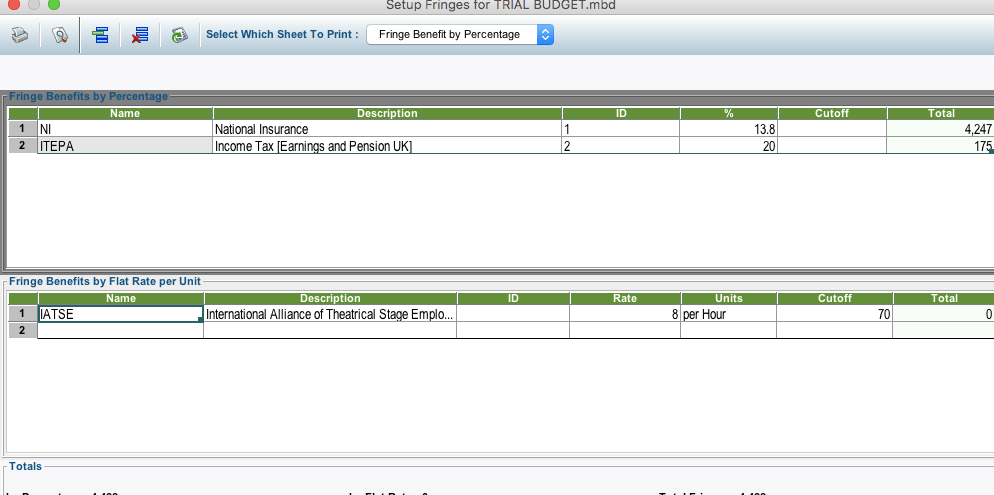
Once you have made the selections the table should appear like the one below, as an example I have added in the abbreviation NI for National Insurance and the percentage that must be paid towards this. This feature also gives you the option to put a cut-off point. This may be used for example if an agency takes a percentage of fees up to a certain amount of money earned.
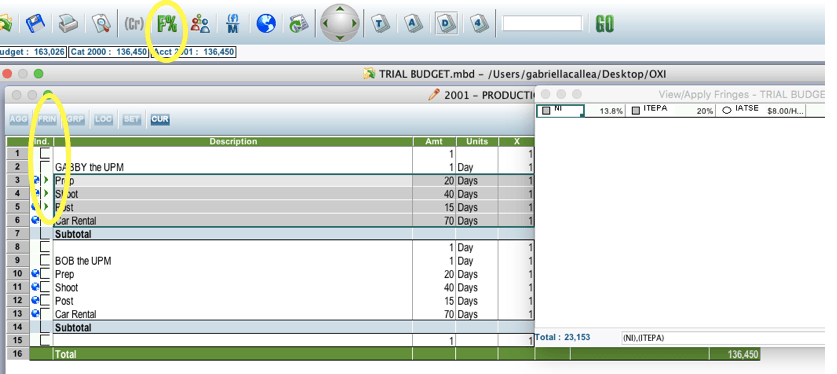
To insert a fringe I will click the green F% button which will bring a table up like the one below on the right hand side of the screen. This will bring up the fringes that I have added previously, I will then select the rows in which I would like to apply these fringes to. In this case it will be the rows for prep, shoot and post as this is what the Unit Production Manager in the example will be getting paid for which will need to have national insurance and income tax taken from this amount. As you can see in the second column in this table is dedicated to fringes and will show which rows you have applied fringes to by displaying a green arrow.
Fringes will vary depending on the production terms and place of origin. In order for me to get a better understanding of fringes I will get in contact with Dominique Malloy a Line Producer to discuss what other fringes there may be on UK productions and any other contributions that may be taken.
Globals
Globals are essentially short cuts for data inputed into a budget. For example this could be used for typing in a term which equals a numerical value such as typing in PD this would be an abbreviation for Prep Days which would equal 20 days for example depending on the number of days in which have been delegated for prep.
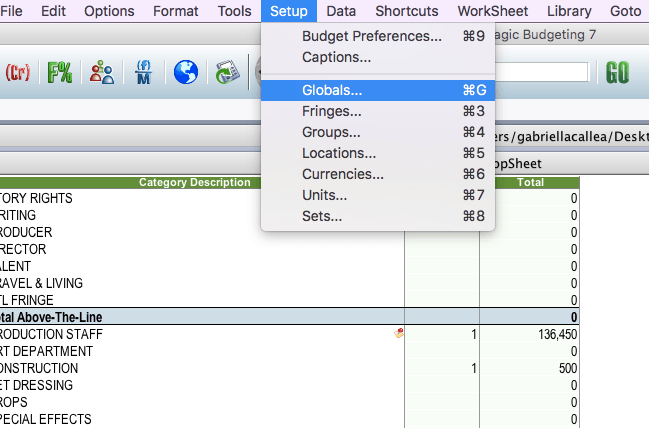
To show a breakdown of how to create globals you would go to Setup > Globals as demonstrated in the image below by the drop down menu.
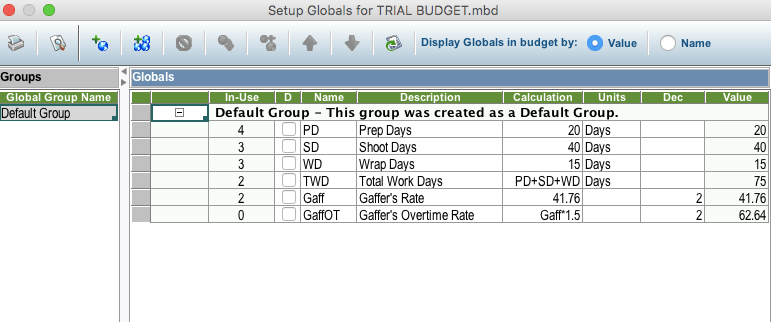
A table will then appear similar to the one below which consists of columns including Name, Description, Calculations, Units, Dec and Value. The name of the global will be the abbreviation which will appear on your budget therefore needs to be recognised and different to all other globals to avoid confusion. For example SD stands for Shoot Days which will be shown in the description, the calculation will then be the value of how many shoot days there will be. In this case I have put 40 meaning there will be 40 shoot days, in the units column this will be whatever units the calculation will be in and in this case it’s Days. The Dec column is to count how many number there is after the decimal point to include them in calculations as the software usually rounds decimals up. Finally the Value column is the total amount generated from the calculation, this would only be different to the calculation column if you have actually input a calculation. For example as you can see in the bottom cell I have created a global for the rate for the Gaffer’s Overtime which would be time and a half. I have worked this out by creating a sum to times the gaffers rate by 1.5. The value column therefore equals how much the gaffers overtime amount would be. Another global which is useful is to create a calculation for the total amount of working days, as you can see the abbreviation for this would be TWD and in the calculation column I have added up the prep, shoot and wrap days. This global would be used if for example a crew member is on the same rate for the entire production period. I will now demonstrate how I would add globals to a table.
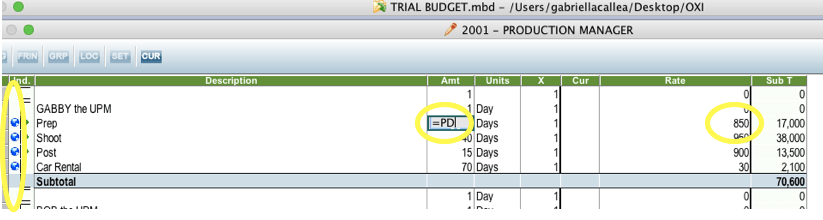
Globals are really useful for in the case of a crew member having a different rate for prep, shoot and wrap. I will now show how I would input this into a crew members wage. As displayed on the table below I have added columns into the Unit Production Managers table for Prep, Shoot and Post. In the amount column I would type in my global as “=PD” in the Prep row this would then equal the number of prep days and automatically add the units. As I have put the amount as days I will need to input the rate as the production managers day rate. In the subtotal column this will then multiply the amount of days by the day rate. The first column of the table is dedicated to globals, in this column will appear a globe to show that a global is in use on this row.
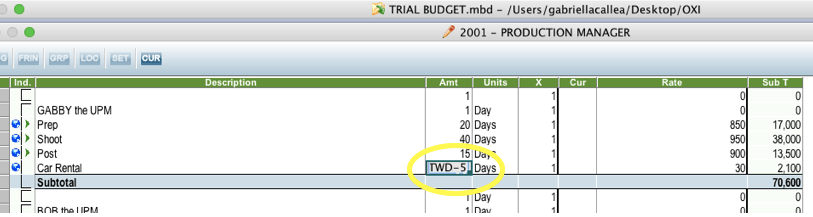
To demonstrate another use of globals I have added a row in the production managers table for car rental. This is to show if for example in the production managers contract she was provided with a car rental for the entire shoot. I would calculate the cost of this by entering in the amount which for example could be the entire production period however wouldn’t include the final 5 days of post. I would calculate this by using the global TWD which is the Total Working Days and minus 5 as shown in the table below. This would then take off 5 days from the entire working period and multiple this by the rate which I have said is £30 per day, this again would be in the units for day as that is what I have formatted in the global set up.
This is a great tool to use when inputting different crew members rates as it is quick and efficient. I will now develop further by expanding my knowledge by learning more advanced tools on Budgeting that can help me improve when inputting data into a table in future.
I am now going to compare this software to using an ordinary spreadsheet on Microsoft Excel from a previous budget I set up for Boiling Point the short film.
Microsoft Excel
In excel they do not offer functions under the names of fringes or globals but instead offer ‘Functions’ under the ‘Insert Function’ button.

The function button on excel brings you to this formula builder that offers many different tools you can add to your budget to make it more efficient. The main difference with Excel and Movie Magic is that Movie Magic is tailored for TV and Film budgets whereas excel can have multiple uses other than budgets it can also be used to record data in the forms of charts and graphs. The closest tool that I could find on excel that was similar to the Globals function was the ‘LOOKUP’ function which converts text to numbers based off a table you must manually make on the spreadsheet.
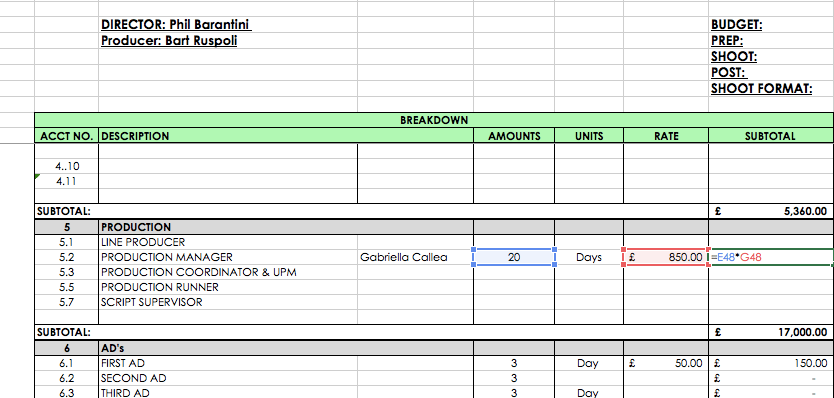
As demonstrated below I needed to create formulas to calculate the total amount for the earnings of the production manager by creating a sum of amount multiplied by the rate. In this spreadsheet I have had to create all the formulas and add in the Units. This differs to Movie Magic budgeting by not having this already formatted into the software as you have to create everything.
Another great feature I discovered when using Movie Magic budgeting is that you can actually export your budget to an excel document. This could be used as an easier format to email over to people as appose to emailing the MM Budget which may not be user friendly to people who do not have the software.
An alternative software to both Movie Magic and Excel is a software called MediaServices. MediaServices is budgeting software which has been tailored to commercial productions. The main difference in features that MediaServices provides is the actualisation tool which provides you with how much has actually been spent so far. This software is also a lot cheaper than Movie Magic budgeting costing £330. Another attractive feature of this software is being able to share your budget with others who don’t have the software. I however cannot give my personal opinion on using the software due to the expense of downloading this. I will develop my knowledge by looking at downloading a trial in future to see if this software appears to be more efficient.
Trial Budget – MM Budgeting
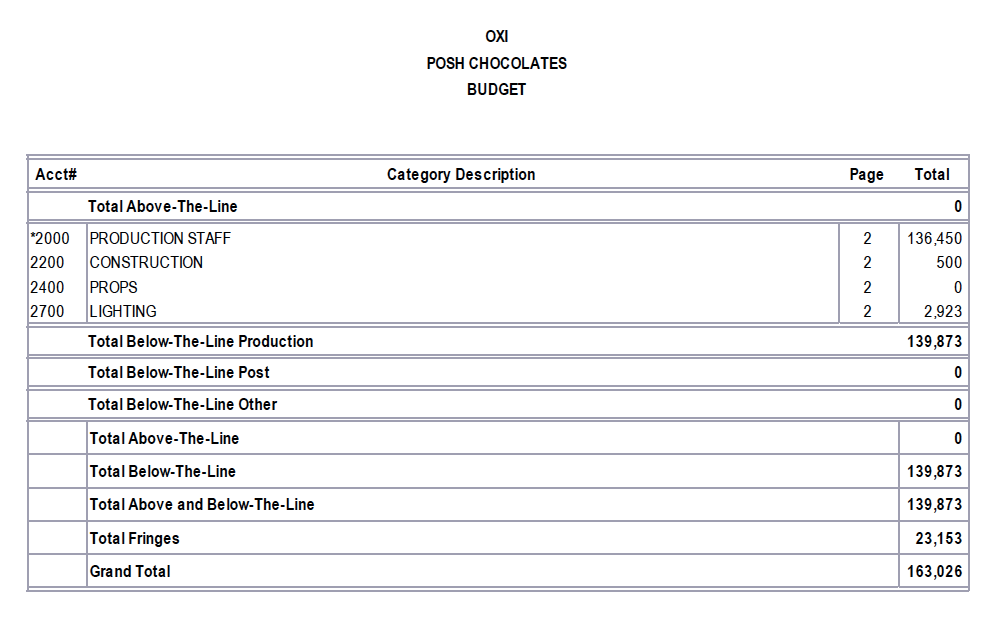
Here I have trialled creating a budget on Movie Magic using the fringes and Globals features that I have demonstrated early in this blog. I have used OXI as an example production to budget and I began to input in the Art Department section the costs for lumber and props. Although movie magic isn’t the best for budgeting smaller productions especially student productions where there is no cost for labour involved meaning a lot of the budget will be empty. However I trialled this and sent it to a freelance Producer Bart Ruspoli to ask for some feedback on how I could improve. Bart mentioned that the budget I have created is in dollars because this is the default currency for Movie Magic. He also suggested looking at a website called ‘Production Incentive’ which is a website that provides you with all the different type of incentive schemes used all over the world. He went on to mention ‘research further into the incentive schemes and look at ways that you can make cuts from the budget and what I mean by this is looking at taking percentages away from your fringe benefits by applying a ‘Credit’.‘ I researched the term credit so that I could understand the term better in regards to this feature on Movie Magic. ‘Applied Credit allows the budgeter to discount that credit, as well as deduct individual fringes.’ Entertainment Partners. 2020. Following on from Bart’s feedback I will now work towards learning about new features and how to change a budgets currency. I will all start to input more information into the document including industry rates that I can find on the BECTU website.
To summarise from my findings I have come to the conclusion that Movie Magic Budgeting is ultimately the most efficient software to use for budgeting a TV or Film productions. With its distinct features that are fit for the purpose of a film budget. For example the use of fringes which are used to apply The only downfalls to Movie Magic budgeting is that it is an expensive software totalling up at £430. The software is also a lot older and not so user friendly with older looking features that aren’t as easy on the eye. Another downside to Movie Magic is that it is a desktop software which means it is harder to share budgets between Producers and isn’t easy to transfer online. Whereas an excel document can be emailed or shared online through google sheets.
As an action plan for future I will continue to learn more about the more complex features of Movie Magic Budgeting. This will help me understand more efficient ways to adding short cuts in budgets and will benefit me when working in production by knowing this process I am putting myself in a good position to by being able to set up and create budgets using the industry standard software. I will continue to search for new software that could be used as appose to Movie Magic. I have however concluded from this research that Movie Magic is the industry standard software and until a new and more efficient software crashes the industry I will continue to make myself familiar with this so that I can keep up with industry standards.
 Synthesis Portfolio for Industry Practise